
Create reusable User Groups to assign tasks, add processes to active workflows, send surveys, and share files—saving hours every week. It’s a new, faster way to manage collaboration across your Trisk workspace.
Simplify Collaboration with User Groups
What’s New
A new User Groups tool is now available, allowing workspace admins (Tenant Users) to create and manage groups that bring together anyone in your ecosystem—internal teams, clients, and guest collaborators alike.
Groups can be reused across the platform, streamlining everyday actions such as:
Surveys: Send a survey to a group rather than selecting each participant.
Workflow Templates: Assign tasks or send communications to a group.
Garage: Share files with a group, and every member receives access automatically.
Task Lists: Filter tasks by group to focus on a specific team.
Client Profiles: Add or assign users in groups.
All group actions respect your role-based permissions, ensuring secure and controlled collaboration.
How It Works
Workspace admins (Tenant users) with the permissions can now create and manage groups in the Main Menu → Governance → Users → User Groups tab.
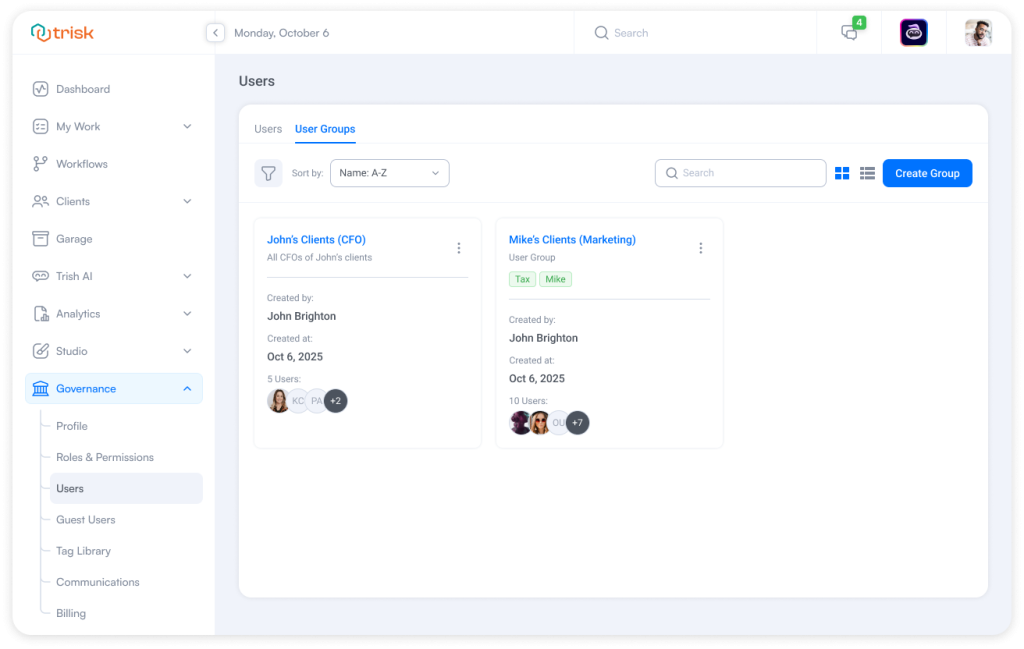 Create a Group: Add a name and description, then select users you want to add to the group, including guest collaborators.
Manage Members: Add or remove users anytime.
Apply Groups Across the Platform: Once created, groups become reusable wherever you assign tasks, share files, or send communications.
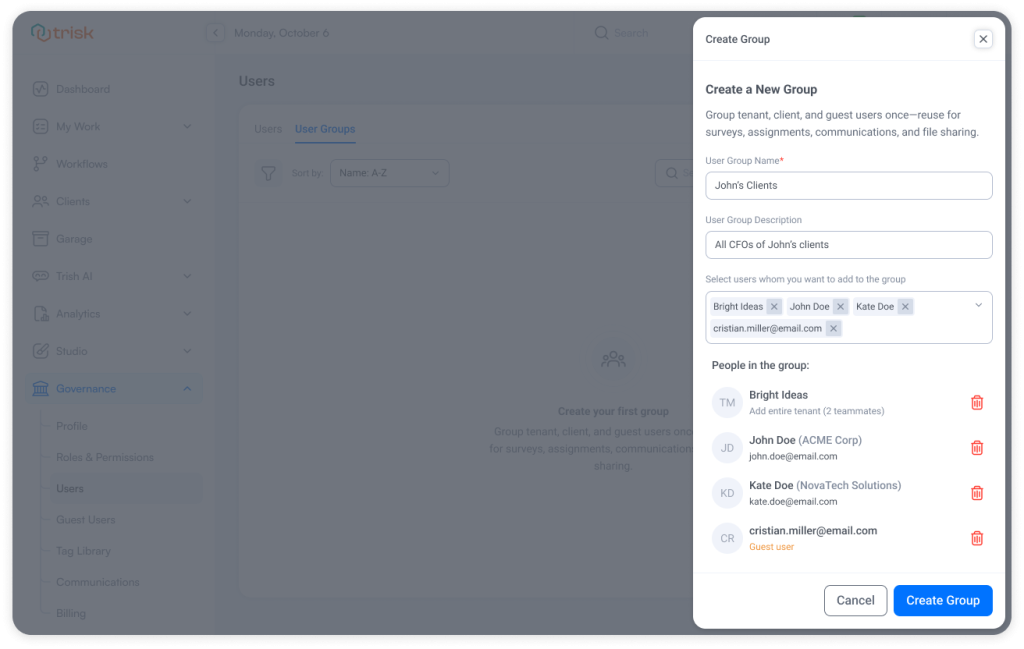
Each time you select/assign a group, the platform automatically applies the same settings to every member—saving time, ensuring consistency, and reducing the chance of human error.
Important Notes
❗️ Removing a user from your Trisk workspace automatically removes them from all groups.
❗️ The User Groups tool is permission-based. Manage who can view, create, or delete groups under Main Menu → Governance → Roles and Permissions.
These permissions ensure that group creation and management remain secure and role-based across your workspace.
Real-World Use Cases
Survey Distribution

When sending a Survey, select a saved group — like John’s Clients (CFO) or Mike’s Clients (Marketing) — instead of adding each recipient one by one. All members receive the form automatically, with shared or individual due dates.
Workflow Assignments
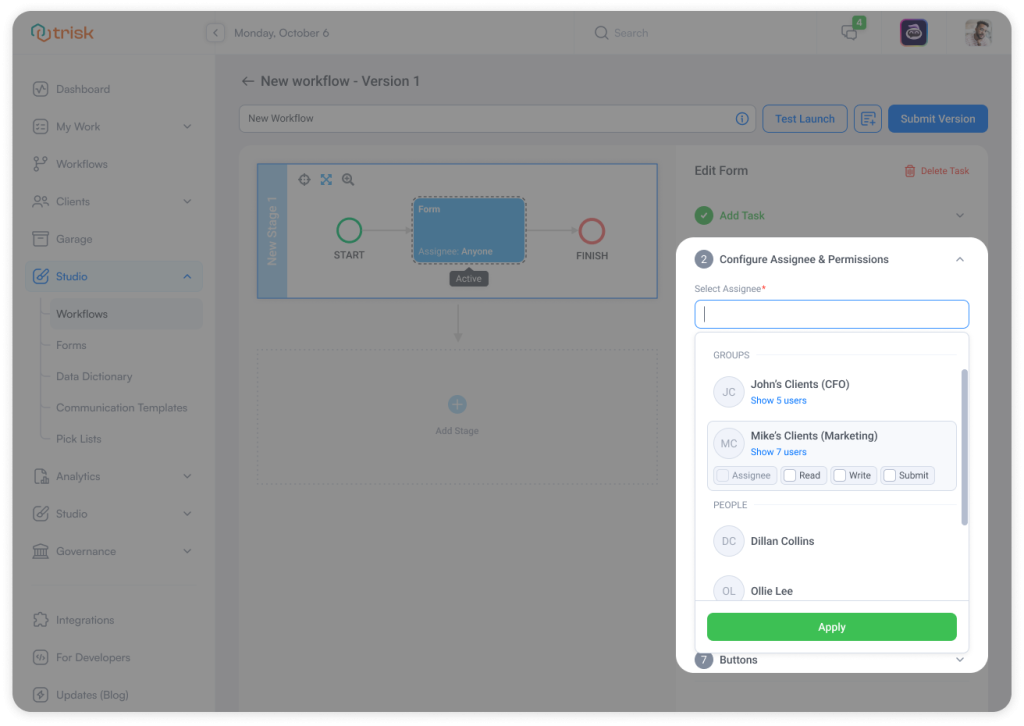
In Workflow Templates, assign tasks to entire groups at once. Choose a group (e.g., Mike’s Clients – Marketing) and set their permissions — Read, Write, or Submit — in a single action.
Workflow Communications
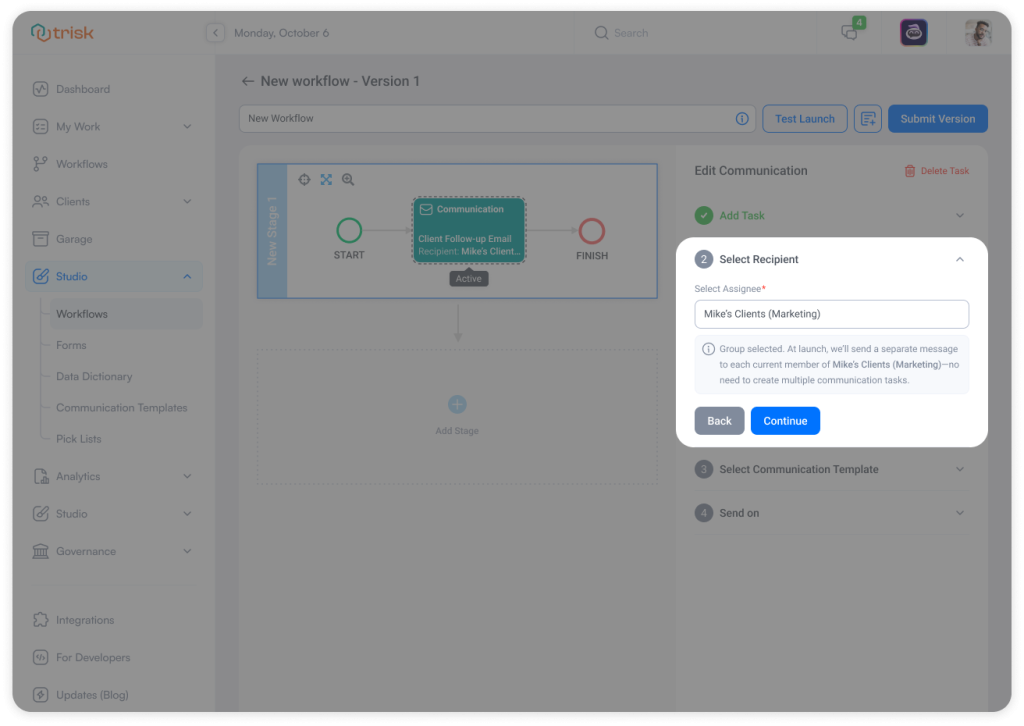
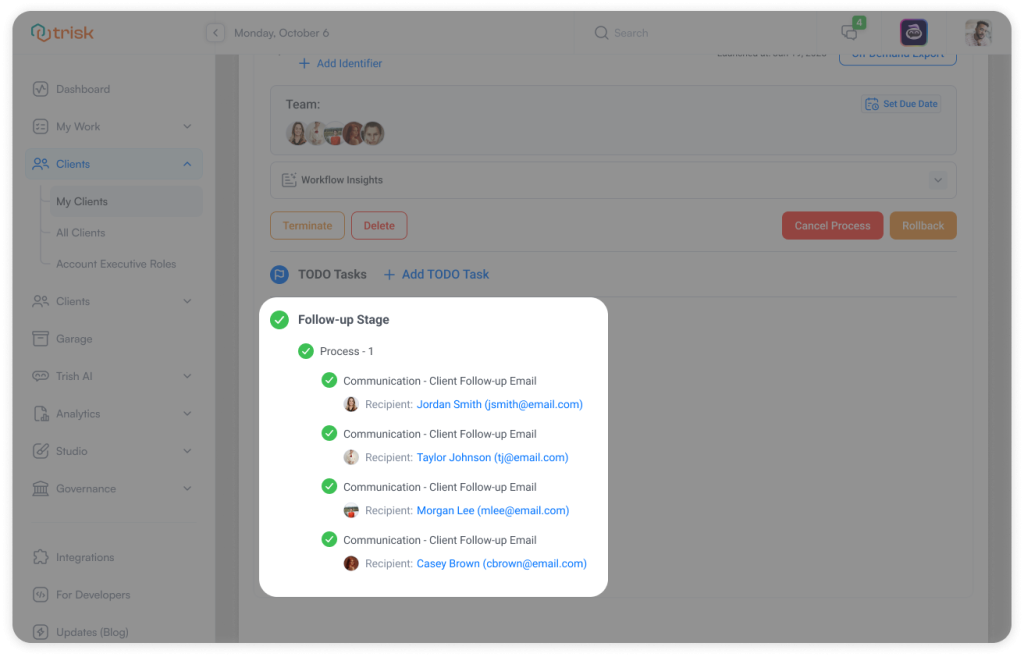 When creating a Communication task, you can now select a group as the recipient. We automatically execute separate communication tasks for each group member — no manual duplication needed.
Task List Filtering
In Task Lists, you can now filter by groups. Quickly view tasks assigned to e.g., John’s Clients (CFO) or Kate’s Clients (HR) to stay focused on specific teams or departments.
Client Profile → Users
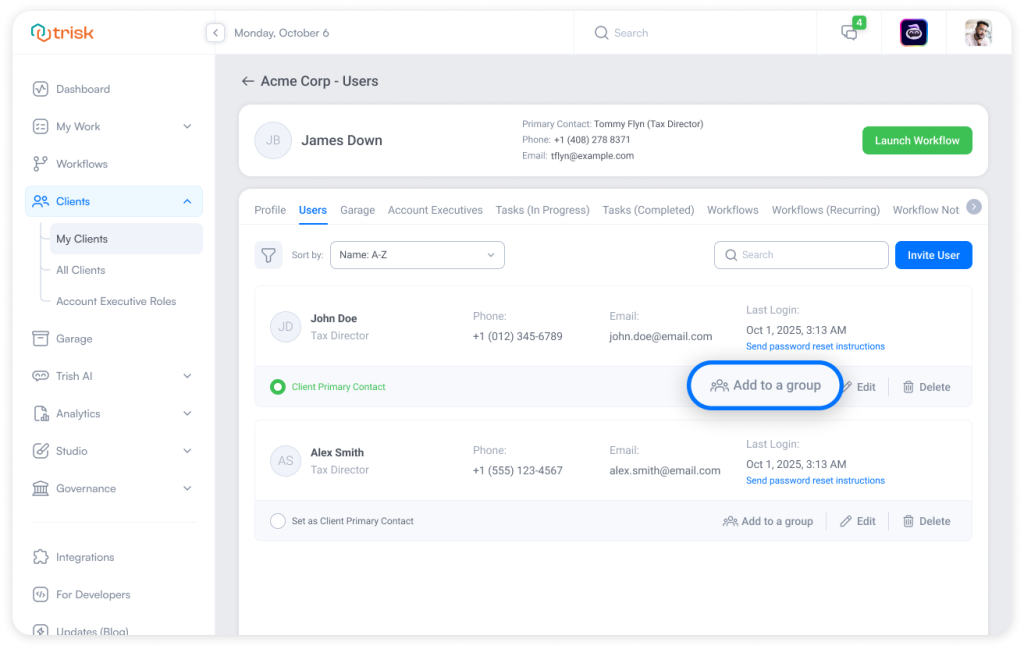
Add existing and newly invited users directly to existing groups using the new Add to a Group button in Main Menu → My Clients/All Clients → Users Tab.
Garage File Sharing
Share any document — such as Contracts 2025 — with a group (e.g., Legal Team) so all members receive immediate access.
Task File Sharing
When sharing files within a Task, every group member assigned to the task gains access automatically, maintaining consistency and control.
Why It Matters
For professional-service teams, time is often lost not in the work itself, but in the coordination around it. Every extra click to assign, share, or send – multiplies across clients and departments.
With User Groups, those manual steps disappear. You set access once, and we handle the rest—keeping communication aligned, permissions consistent, and collaboration effortless.
It’s faster task management with control, clarity, and confidence at scale.
Curious to see perfect automation in Your Context?
👉 Book a short walkthrough
👉 See how Trisk solutions map into your busiest workflows
👉 Compare your current cycle times with what automation can unlock
No hype.
No generic pitch.
Just a clearer look at how 2026 could feel less chaotic and more strategic.
Add Processes for Entire User Group in One Action
When you’re working inside an active workflow, it’s common to start the same step for several people: sending a Verification Form to every manager, launching an Interview stage for a review panel, or assigning follow-up tasks to an entire client team.
Previously, this meant adding processes one by one.
Now, it happens in a single step.
With this update, you can select a User Group, and the platform automatically creates a separate process for each member. It’s the fastest way to start multiple processes at once — without repetition or missed assignments.
What’s New
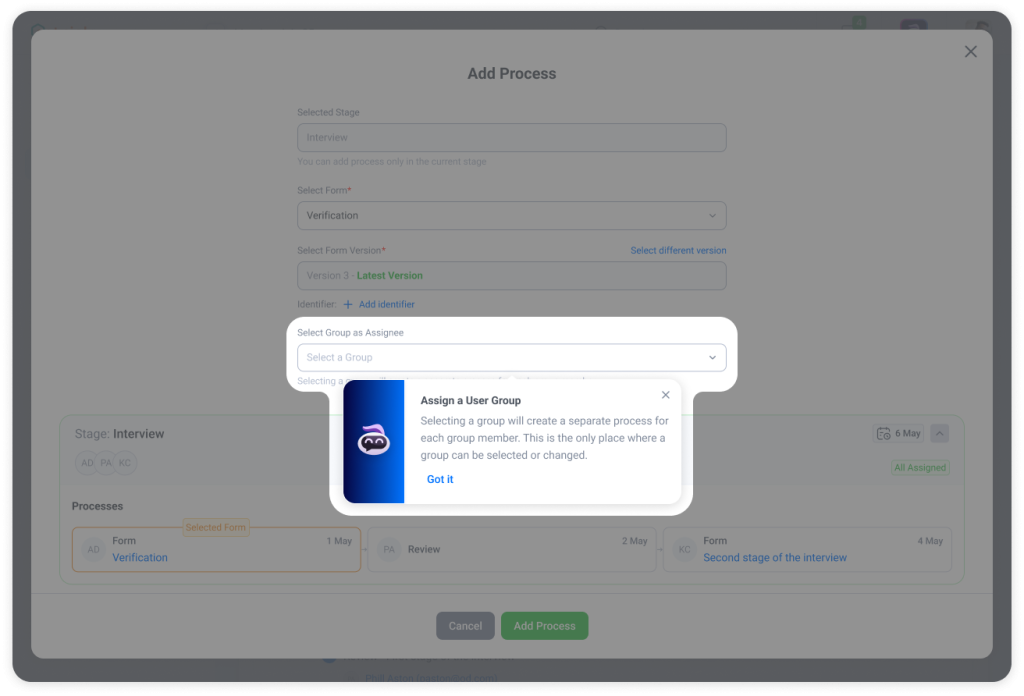
You can now choose a User Group when adding a new process during Workflow Execution.
Select a group, and Trisk instantly generates individual processes for each member, complete with their own permissions, timelines, and tracking.
Multi-person steps become dramatically faster and far easier to manage.
How It Works
Add new processes as usual:
- Workflow Execution -> Add process
- Workflow Execution -> Task → Foldover → “Tasks” Tab → Add process
In both flows, you’ll now see a Select Group as Assignee dropdown. Choose a group instead of selecting users individually.
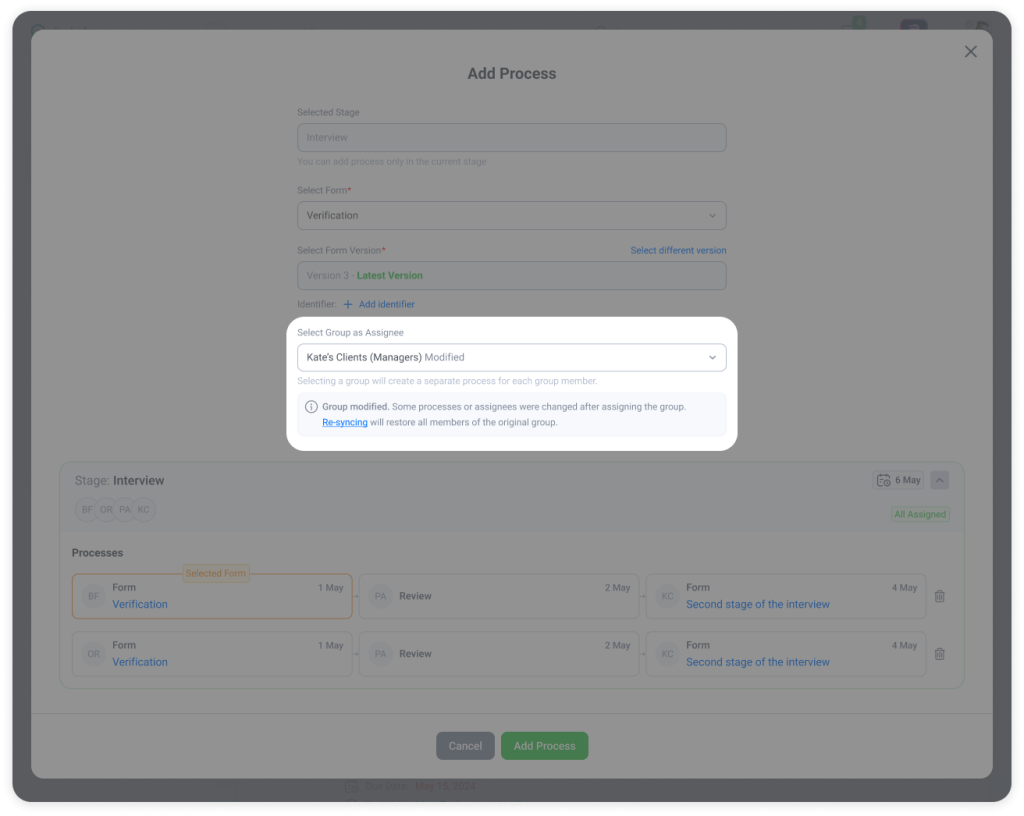 When you select a group:
- You’ll see a preview of all processes that will be created for each group member.
- You can adjust individual assignees or remove specific processes if needed.
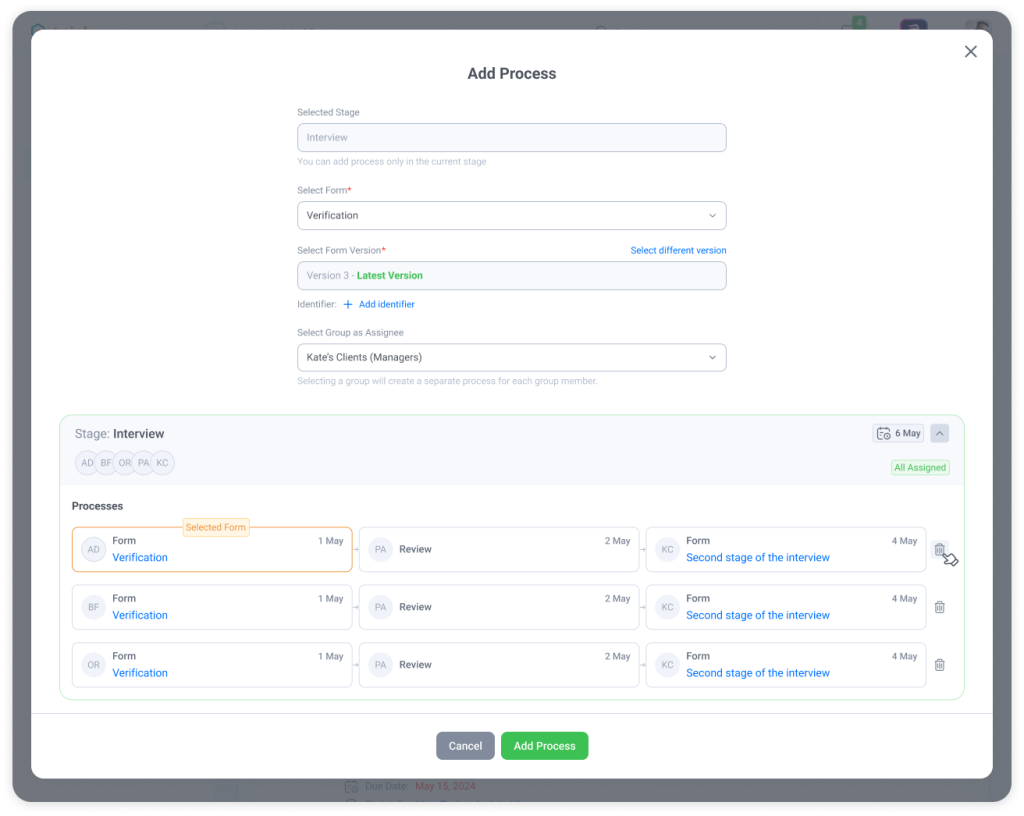
- If you make changes, we’ll show you that the group was modified. Click a Re-sync option to instantly restore the original group setup.
We also protect you from invalid assignments:
If a group includes users who can’t receive a specific task type (e.g., guest users), you’ll see a clear warning, and only eligible members will be assigned.
Why It Matters
Adding a single process isn’t hard. Repeating the same step five, ten, or thirty times is.
This update eliminates:
❌ manual duplication
❌ risk of forgetting someone
❌ inconsistent assignments
And replaces it with:
✅ one selection
✅ perfect consistency
✅ clean, reliable process launches at scale
It’s faster, more precise, and more reliable — especially for teams managing complex, multi-person workflows.
Form Builder: Faster Section Reordering
An amazing new tool for our users who work with long, complex forms.
We add one more way to organize forms to our existing Drag-and-drop method.
Now, you can reposition a section using a new selector: Place After, which is an absolute game-changer when your form has many sections.
How It Works
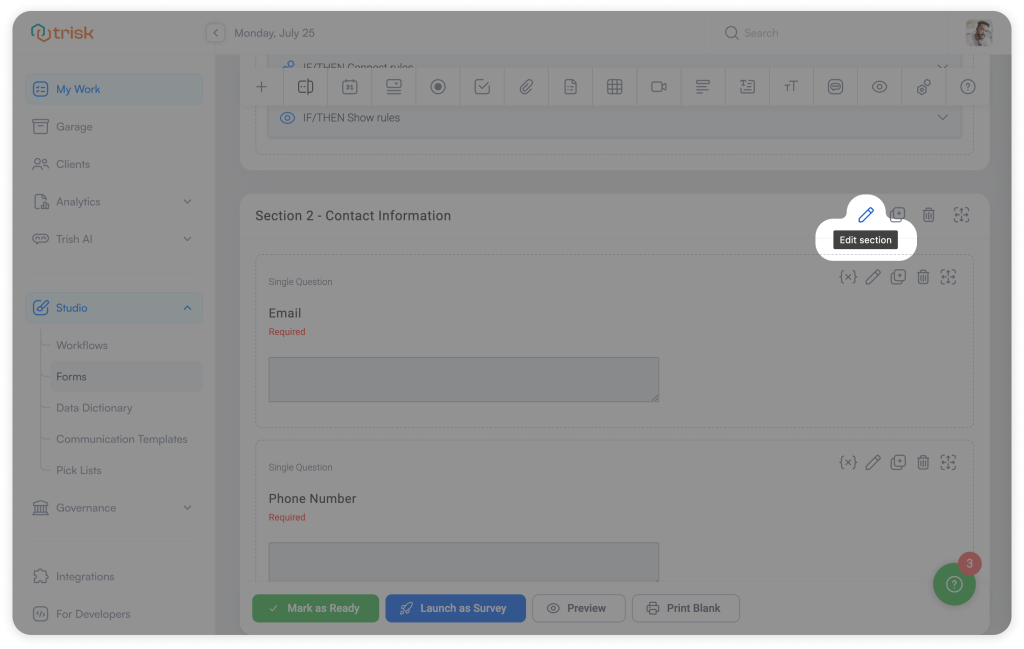
1. In the Form Builder, click Edit section
 2. You’ll now see a new field: Place After (dropdown). Use it to choose exactly where this section should go:
- At the top — moves the section to the first position
- Section N – Section Name — moves the section right after the selected section
- At the bottom — moves the section to the last position
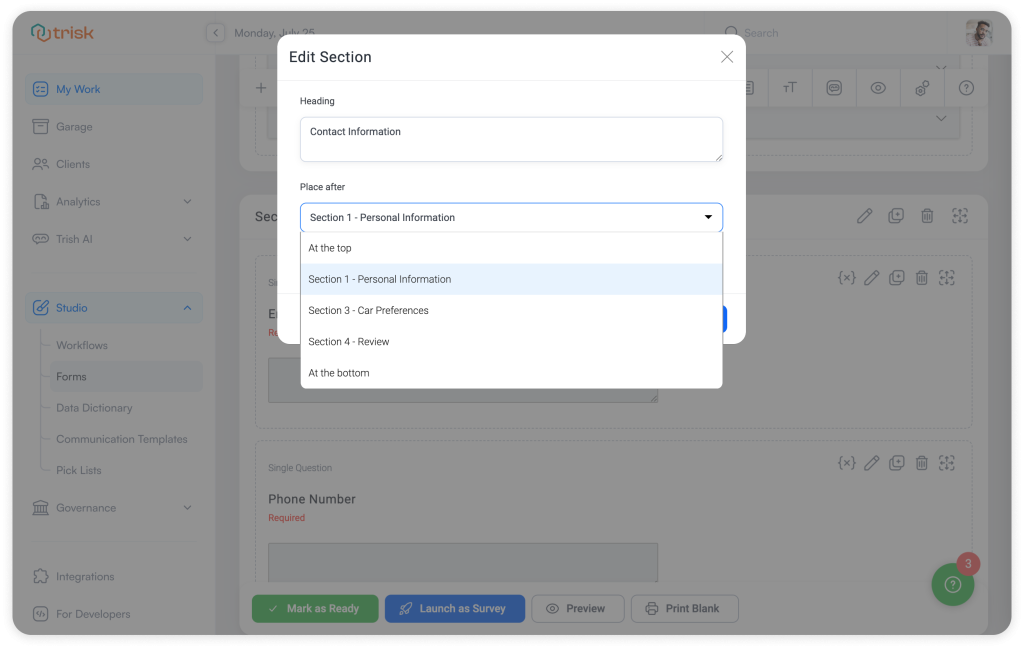
3. Choose the new Place After value
4. Click Confirm
The section order updates immediately after saving.
Why It Matters
Forms tend to grow. And once they do, reorganizing sections is crucial for staying in control. This update helps you to maintain a clean, predictable structure with minimum effort.
Explore even more cutting-edge features that will add significant value to your Trisk experience:
- Track When Your Emails Are Opened – See exactly when clients open emails sent from Trisk, including reminders and assignments, for better visibility and accountability.
- Your CRM Now Built into Trisk – tag and filter clients by status or category, and automate tagging based on form responses.
- Trisk Tables – Why You’ll Never Go Back to Excel Spreadsheet