
Add approvals to To-Do tasks, keep client notes with files and full activity tracking, focus instantly on active clients, and manage workflows with improved visibility—all in one place.
Table of Contents
– Require Approval for To-Do Tasks Before Completion
– Attach Files to Client Notes and Track Every Interaction
– Focus on Active Clients with Frequent Clients Filter
– Manage Workflows with Full Visibility in Table View
– Find Tasks Faster within your Workflow
– Switch Between Client and Workflow Views
TODO Tasks: Add Approval Step for Controlled Completion
TODO tasks can now include a required review step, ensuring work is checked and approved before it is marked complete.
What’s New
You can now require approval for TODO tasks.
When enabled:
- A reviewer is assigned to the task
- A review step is automatically added after completion
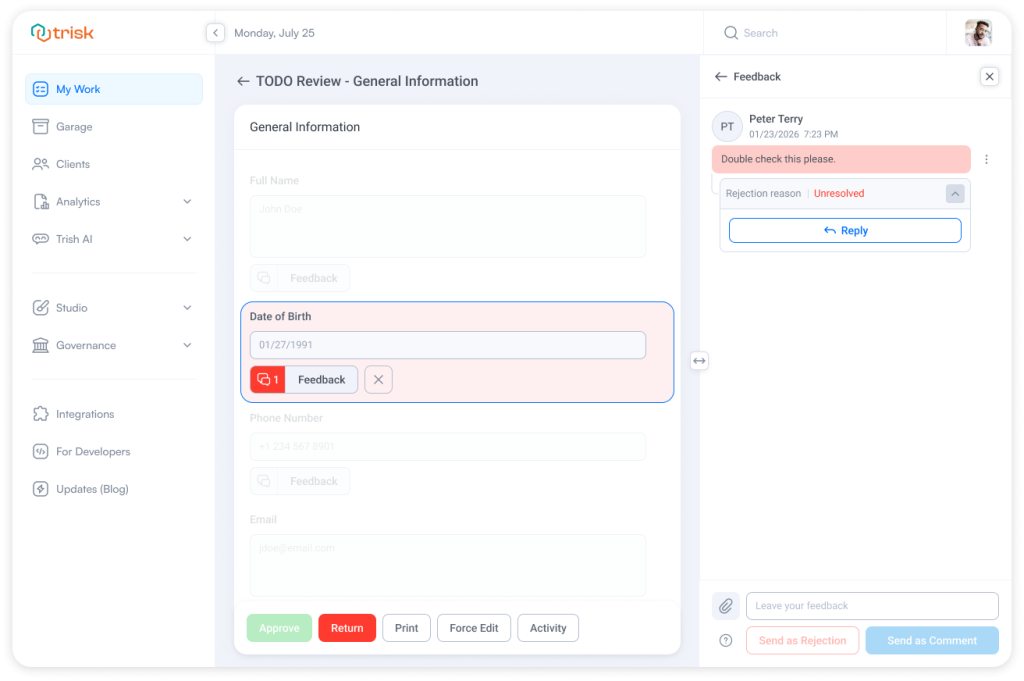
- The reviewer can approve or return the task with feedback
The review experience follows the same logic used in Form Reviews—keeping behavior consistent across Trisk:
– TODO completed → sent for review
– Reviewer approves → task completed
– Reviewer rejects → task returned with feedback
How It Works
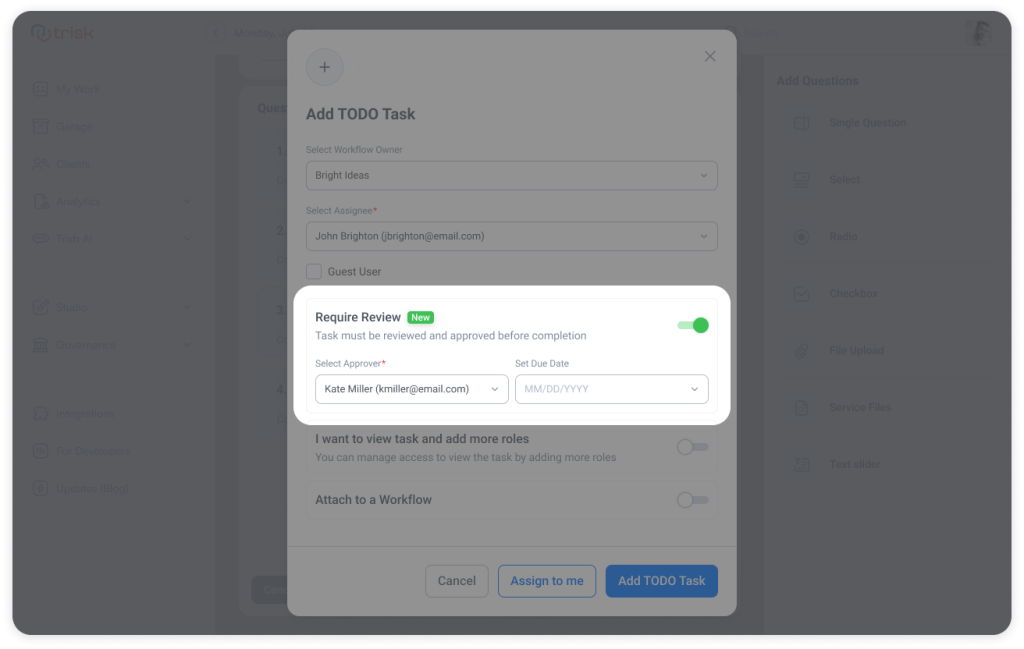
When creating a TODO task:
- Enable Require Review
- Select a reviewer
- (Optional) Set a due date
After the task is completed:
– A review step is triggered
– The reviewer approves or rejects the work
If rejected:
– The task is returned with feedback
– Issues must be resolved before completion
Feedback is tracked and visible within the task.
Business Impact
Ensure work is verified before completion
Add a review step to tasks that require validation.
Create clear accountability
Define who completes the work and who approves it.
Reduce errors in the final output
Catch issues before tasks are marked done.
Important Notes
📌 Approval step is optional
📌 Rejections include feedback and must be resolved before completion
Client Notes: Attach Files and Track Activity
Client Notes now support file attachments, with activity tracking for every interaction—so context and supporting documents stay together.
What’s New
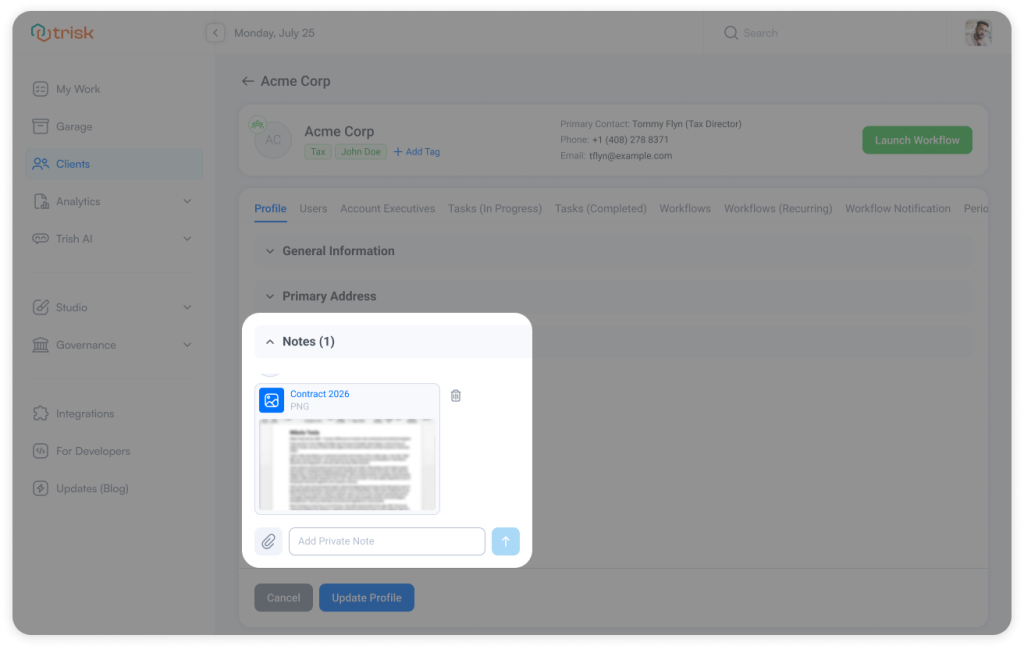
You can now attach files directly to Client Notes.
Notes support:
- File uploads from your device or Garage (e.g., PDFs, screenshots, agreements, emails)
- Inline image previews
- File preview and download
Every file interaction is tracked:
– Views
– Downloads
– Prints
– Who accessed the file and when
 How It Works
- Open a Client Profile → Notes
- Add a note and attach files
After adding:
– Files appear within the Note
– Images display inline; other files open in preview and are available for download
– All interactions are recorded in Activity History
Business Impact
Keep context and documents together
Store supporting files directly inside notes.
Track document access
See who interacts with files and when.
Reduce follow-ups and searching
Access notes and related files in one place.
Use Cases
Legal
Attach agreements and track who accessed them.
Accounting
Store supporting documents alongside notes.
Consulting
Keep approvals, screenshots, and client materials in context.
Important Notes
📌 Maximum file size: 300MB
📌 Files are saved only after adding the note
📌 Activity is automatically recorded in Activity History
📌 Permissions follow existing client access rules
Clients List: Activity-Based Client Prioritization
The Clients List has been enhanced with activity-based prioritization to help you pick up where you left off faster and focus on clients who require immediate attention.
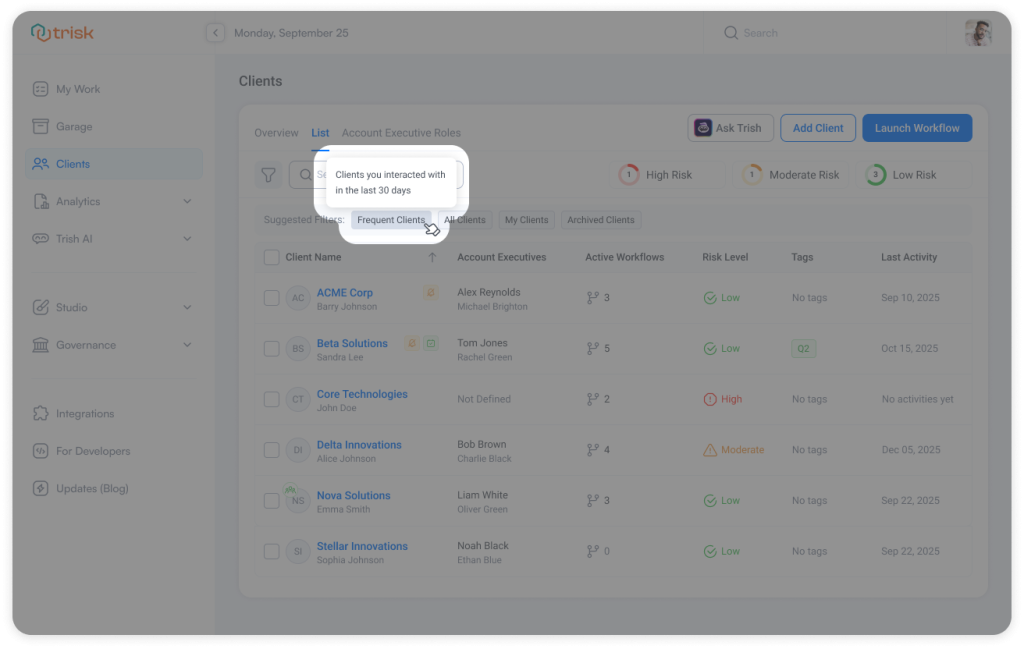
The new Frequent Clients filter surfaces recently engaged clients, enabling faster navigation and reducing time spent searching across large client datasets.
What’s New
A new Frequent Clients filter is now available in the Suggested Filters section of Clients → List.
When selected, it shows:
- Clients you’ve worked on in the last 30 days. This ensures the list reflects current operational workload, not static data.
- Only activity relevant to you. The Frequent Clients view is dynamically tailored to each user based on individual activity.
How It Works
- Navigate to Clients → List
- Select Frequent Clients from Suggested Filters
- The list updates instantly to show only clients where you’ve had recent activity
If no qualifying activity exists, the result set remains empty.
Business Impact
Improved Operational Efficiency
Reduces time spent searching for active clients by prioritizing recently engaged accounts.
Contextual Workflows
Transforms the Clients List from a static directory into a context-aware working surface.
Reduced Cognitive Load
Eliminates repetitive navigation by presenting relevant, in-progress work upfront.
This update turns your Clients list from a full directory into a focused, working list of your active clients.
Use Cases
This enhancement directly supports high-volume, multi-client environments:
- Accounting & Tax Firms → Filing season workload prioritization
- Consulting Teams → Active project visibility
- Legal Practices → Ongoing case/client tracking
Important Notes
📌 The Frequent Clients filter is personalized for each user.
📌 Only clients with activity in the last 30 days are displayed.
📌 Visibility follows existing permissions.
📌 The filter updates dynamically based on your activity.
Workflows List: Structured Table for Scanning Work at Scale
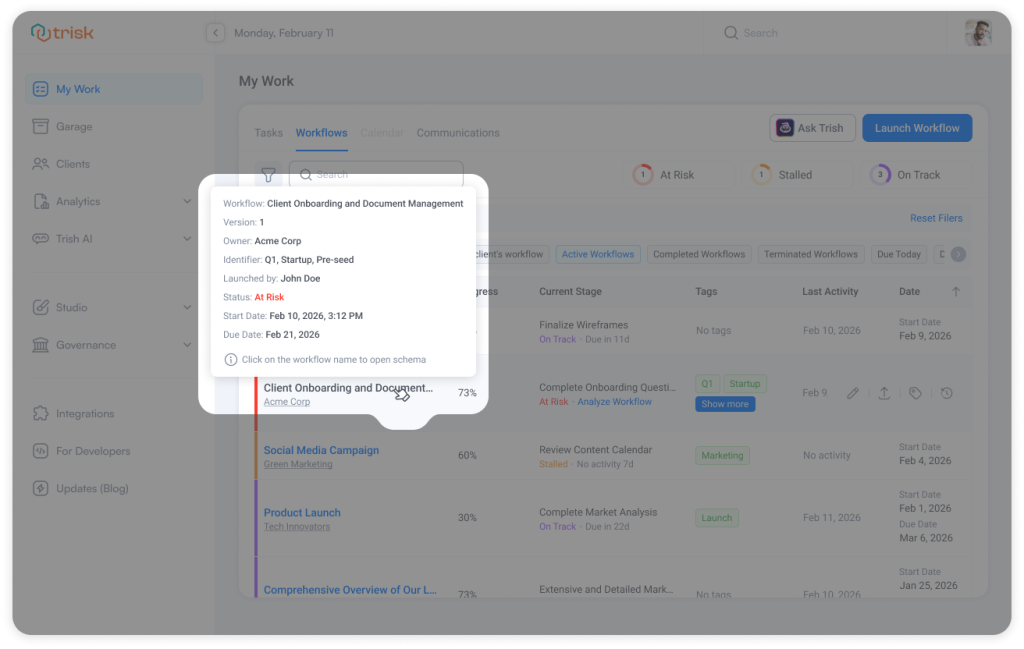
The Workflows list now uses a table layout, showing status, progress, and ownership across all workflows in one view.
What’s New
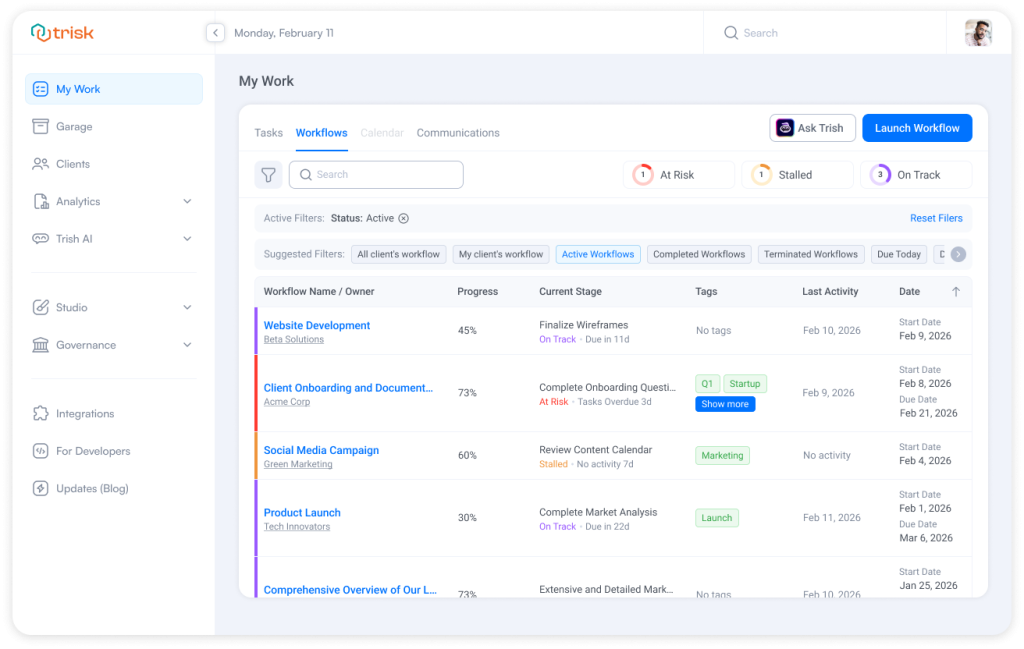
The Workflows list is now presented as a table with clear columns and status indicators.
Open My Work → Workflows
Each workflow now includes:
- Workflow Name & Owner
- Progress (or completion status)
- Current Stage with status and timing
- Risk status (At Risk, Stalled, On Track)
- Tags (for quick categorization)
- Last Activity
- Key Dates (start, due, completed, terminated)
At the top of the table, risk distribution pie charts provide a quick overview of your workflows:
– At Risk
– Stalled
– On Track
Hovering over a workflow reveals additional context, including status history, dates, ownership, etc.
Workflow Schema, Now Easier to Navigate
The improvements don’t stop at the list view. Clicking the workflow name opens the full workflow view in a new tab.
A new Search Bar allows you to find specific tasks or processes without scanning the entire workflow.
This is especially useful in workflows with multiple stages and parallel steps.
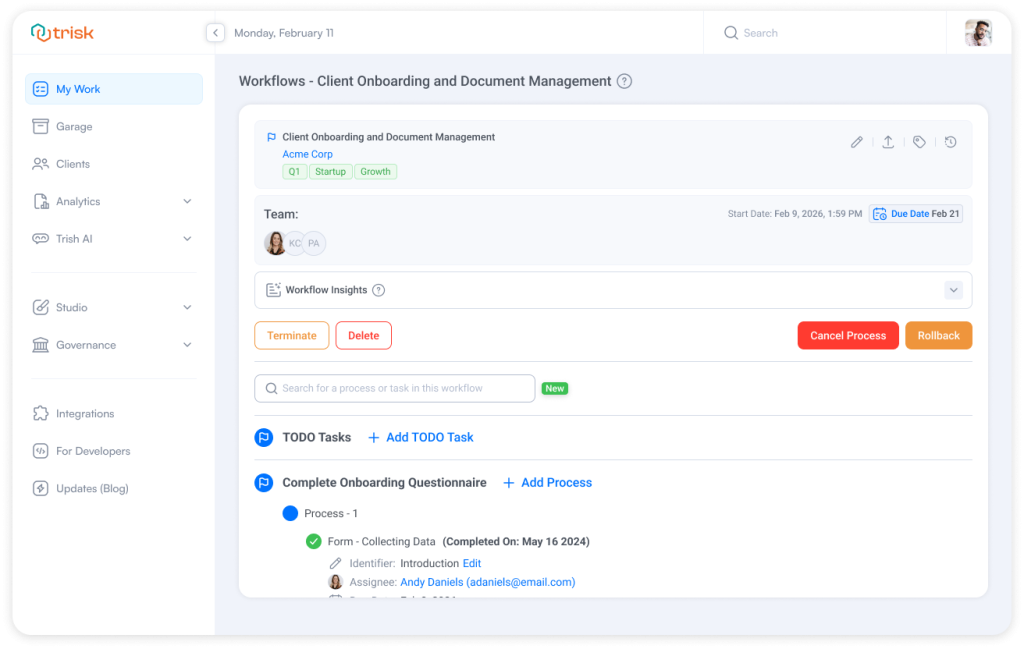
This makes the workflow schema easier to use as a day-to-day execution tool—not just a place to inspect structure.
Business Impact
As your firm scales, so does the number of active workflows.
Without structure, a workflow list becomes:
– Hard to scan
– Time-consuming to manage
– Easy to overlook risks
This update allows you to:
Review workflows at scale
Scan status, progress, and ownership across multiple workflows in one view.
Identify issues immediately
See delays, risks, and responsibility without opening each workflow.
Work with a clearer structure
Consistent layout makes workflows easier to track and manage.
Use Cases
Month-end close or high-volume periods
Open the Workflows list and immediately see:
- Which workflows are At Risk
- Which are Stalled
- Which are On Track
Prioritize and act instantly—without searching, guessing, or switching between screens.
One View Doesn’t Fit All: Switch Between Client and Workflow Views Instantly
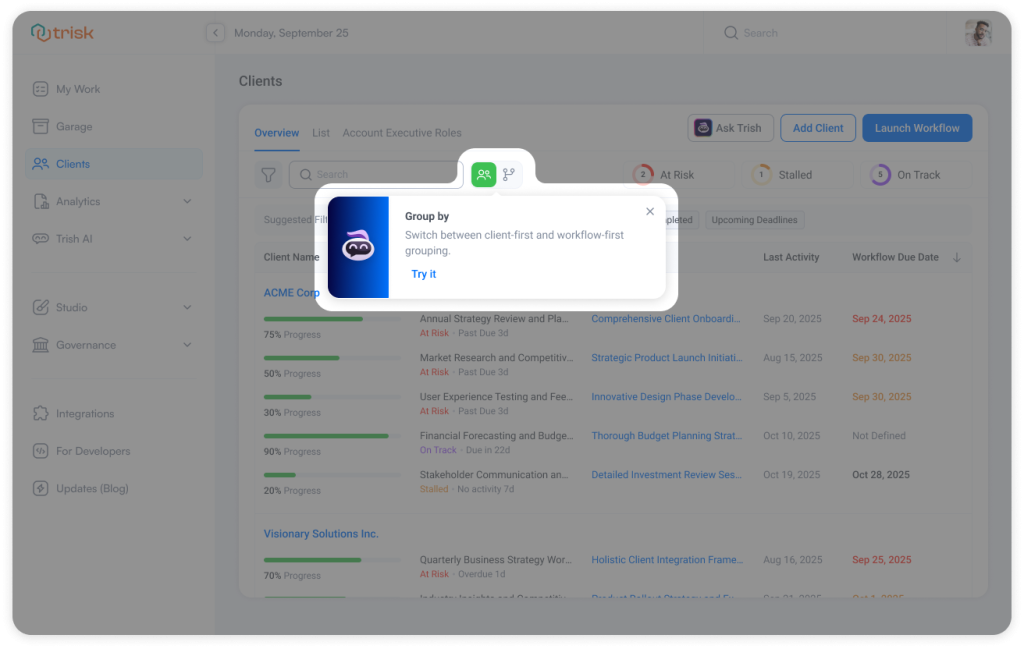
You can now change how work is organized in Clients → Overview—by client or by workflow—without changing data or context.
Now, you don’t have to adapt to a fixed view. The view adapts to you.
What’s New
Clients → Overview now supports two views:
- Client view — work organized by client
- Workflow view — work organized by workflow across clients
Switching views:
- Updates the layout instantly
- Keeps filters, permissions, and data unchanged
- Persists across sessions
Your selected view is saved automatically, so it stays the same across sessions, devices, and tabs.
How It Works
Use the view switcher in Clients → Overview:
- Toggle between Client-first or Workflow-first near the search bar
- Or switch from the selector in the first column
The view updates immediately without resetting your filters or data.
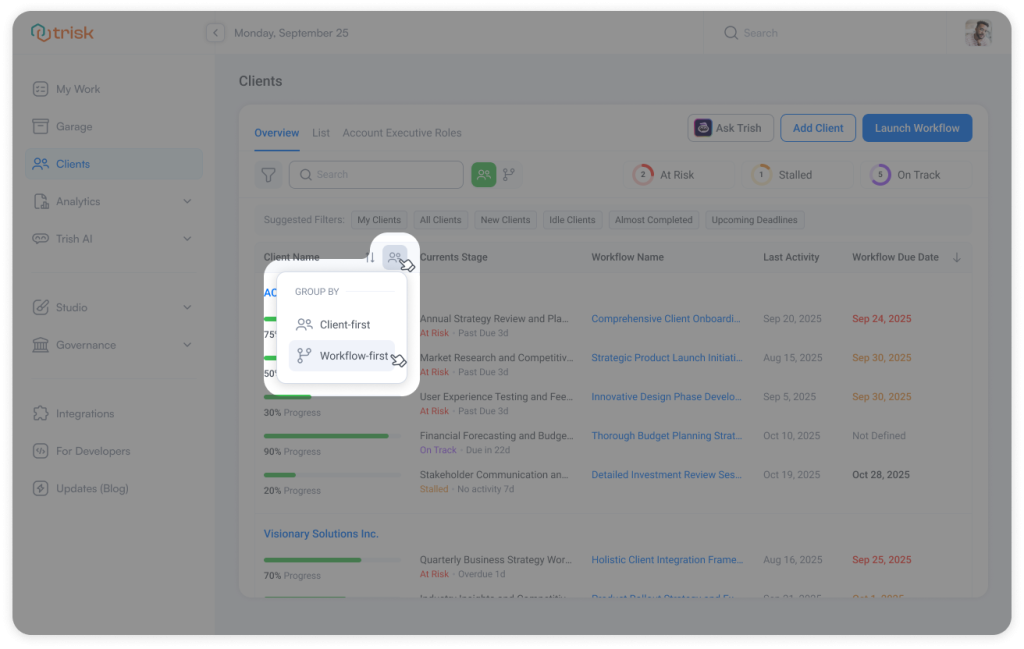
Workflow-First View (What Changes)
When switched to Workflow-first:
– Workflows are grouped by workflow name, not by client
– Multiple clients running the same workflow appear together
– Progress is visible across clients
– Columns adjust to reflect workflow-level tracking
This allows you to:
- Track how a workflow performs across clients
- Identify where delays or risks are concentrated
- Monitor execution across multiple engagements
Business Impact
Work from the right perspective
Switch between client-focused and workflow-focused views depending on the task.
Track execution across clients
See how the same workflow progresses across multiple clients.
Reduce context switching
Access both views in one place without changing pages or losing filters.
Use Cases
Account Management
Use the Client view to track work per client.
Operations / Delivery Teams
Use the Workflow view to monitor execution across clients.
One screen. Two perspectives. Same data—organized your way.
Explore even more cutting-edge features that will add significant value to your Trisk experience:
- Unified Feedback System for Form Review – Comments, Notes, and Discussions are now combined into one structured Feedback system.
- What 2025 Revealed About Automation, AI, and How Modern Firms Actually Operate
- User Groups – Save Hours on Multi-User Assignments and Processes