
This update brings stronger access oversight, clearer workflow planning, and faster ways to get to the work that matters.
New inactive-user reviews help admins keep workspace access current, while improved workflow deadlines make planned and recurring work more predictable. Across My Work, Clients, Forms, and Filters, you’ll also find improvements that reduce searching, simplify navigation, and give you more control over how work is organized.
Compliance: Proactive Reviews for Inactive User Access
Keeping access up to date is an important part of protecting client and company information. As teams change, however, accounts that are no longer regularly used can remain active simply because nobody has had a reason to review them.
What’s New
Users who haven’t logged in for more than 30 days are now identified as inactive in Governance → Users, making accounts that may need attention easier to spot.
We also perform a weekly check for inactive users. When they’re found, the workspace owner and administrators with permission to manage user removal receive an email prompting them to review those accounts.
The email provides direct access to user management, so administrators can quickly determine whether access is still needed.
Business Impact
Reduce Unnecessary Access
Regular reminders make it easier to identify accounts that may no longer need access to workspace or client information.
Support Better Access Reviews
Inactive accounts are surfaced proactively instead of relying on administrators to remember to search for them periodically.
Keep Administrators in Control
We identify accounts that deserve review, while the decision to retain or remove access remains with your team.
Strengthen Security and Compliance Practices
Regularly reviewing who still needs access supports cleaner user management and helps reduce avoidable access risk over time.
The result is a simple, recurring safeguard: we identify potentially unnecessary access, bring it to the right administrators’ attention, and let your team decide what should happen next.
Workflow Planning: Start Every Workflow with a Clear Due Date
A clear completion target makes it easier to plan work, monitor progress, and understand when a workflow is expected to finish.
With this update, every workflow must have a Workflow Due Date before it can be launched. To make choosing that date easier, we now also suggest a realistic deadline based on the due dates of the tasks already planned inside the workflow.
What’s New
The Workflow Due Date is now required during launch. If a due date hasn’t been set, the workflow won’t launch until one is added.
Rather than leaving you to determine that date on your own, the platform provides a suggested due date based on the last calculated task due date in the workflow.
For example, if the final scheduled task is due June 30, we will suggest June 30 as the overall Workflow Due Date.
The recommendation is there to help, not restrict you. You can use the suggested date or replace it with a date that better reflects a client commitment, internal target, or other deadline.
If the workflow launch date changes, the suggested due date is recalculated accordingly.
Business Impact
More Consistent Planning
Every workflow begins with a defined completion target, giving teams a more consistent foundation for planning and monitoring work.
More Realistic Deadlines
Using the planned task dates as a starting point helps avoid setting an overall workflow deadline that falls before the work inside it is expected to be finished.
Less Manual Estimation
Instead of working out an appropriate deadline from the task schedule each time, users get a relevant recommendation automatically.
Clearer Workload Visibility
More consistent workflow due dates give managers a more reliable view of what is due and when work is expected to be completed.
Fewer Misleading Overdue Workflows
Better alignment between workflow and task due dates reduces cases where a workflow appears overdue simply because its overall deadline did not reflect the work scheduled inside it.
Note
This update applies to regular Workflow Launches and workflows launched through a Subsequent Workflow task. Bulk Workflow Launch is not affected.
Curious to see perfect automation in Your Context?
👉 Book a short walkthrough
👉 See how Trisk solutions map into your busiest workflows
👉 Compare your current cycle times with what automation can unlock
No hype.
No generic pitch.
Just a clearer look at how work could feel less chaotic and more strategic.
My Work: Focus Your Task List on Active Work
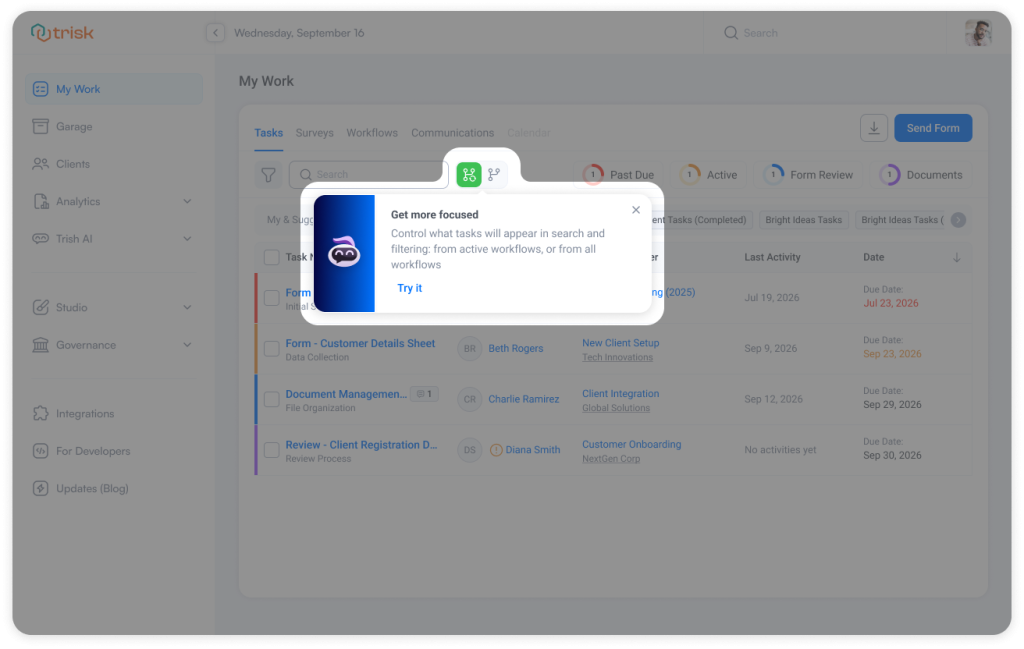
You can now quickly switch My Work → Tasks between tasks from active workflows and tasks from all workflows.
Use the active view to keep your day-to-day task list focused on work currently in progress, then switch back to all workflows whenever you need to find tasks from completed, terminated, or otherwise inactive work.
The switcher works alongside your existing search and filters, and we remember your selection in your browser—so your preferred view is ready the next time you return.
Existing workflow status filters remain available when you need more granular control. The new switcher simply makes the most common view change faster.
Recurring Workflows: Deadlines That Move With Your Schedule
Recurring workflows now carry their Workflow Due Date timing forward automatically, giving each new workflow a predictable completion target alongside its scheduled launch.
How It Works
When you create a recurring workflow, we preserve the time between its launch date and Workflow Due Date. If the original workflow launches on January 1 and is due January 10, a workflow launching on February 1 will automatically be due February 10.
You can still adjust the due date of any individual workflow when an exception comes up. That change applies only to that workflow and won’t affect the deadline timing of future recurring launches.
Business Impact
More Predictable Recurring Work
Each new workflow starts with a deadline that follows the timing originally established for the process.
Less Repetitive Setup
Teams don’t need to recreate the overall deadline each time recurring work is launched.
More Reliable Planning
Managers can see not only when recurring work will begin, but also when each workflow is expected to be completed.
Handle Exceptions Without Changing the Schedule
If one workflow needs a different deadline, you can adjust that individual instance without affecting future recurring launches.
This means less repetitive setup and more consistent planning for recurring work: set the expected timeframe once, and Trisk carries it forward.
Note
Due dates for newly launched workflows are now set to the end of the selected day in the time zone where the workflow was launched. This applies to both manual and recurring launches.
Workflow Management: Find Your Latest Workflow Runs Faster
We’ve updated the default sorting of workflow runs to make the latest activity easier to find.
Previously, workflow runs were sorted by progress, giving teams a useful way to see how work was moving toward completion.
Workflow runs are now sorted by Start Date, with the newest at the top. This makes recent work immediately visible when you open the list, while progress sorting remains available whenever you need a different view.
What’s New
When you open a workflow’s list:
- The most recently started runs appear first
- Older runs follow based on when they were started
- The same sorting applies to both active and completed runs
- You can still sort by progress
For teams managing a growing volume of client and internal work, it’s a small change that makes the latest workflow activity faster to find without taking away the flexibility of the existing sorting.
Clients Overview: Get to Your Frequent Clients Faster
The Frequent Clients Suggested Filter is now available directly in Clients → Overview tab, making it faster to focus on the clients you work with most often.
Frequent Clients is personalized to your activity, so each user gets a view relevant to their own work. Select the filter to quickly narrow Overview to recently active clients instead of searching through the full client list.
It’s the same personalized shortcut already available in other client areas, now available in the Overview tab for a faster, more consistent way to navigate client work.
Forms: More Control Over Table Structure
Form creators can now control whether users can add or remove rows and columns in Table fields.
What’s New
When creating or editing a Table field, you can now choose whether users can:
- Add rows
- Remove rows
- Add columns
- Remove columns
Each option can be configured independently, so you can keep the parts of a table that need to stay consistent fixed while leaving other areas flexible. For example, keep predefined financial columns in place while allowing users to add as many rows as needed.
Protect Structure Without Losing Flexibility
Keep required information intact. Prevent users from removing rows or columns that are necessary for a complete submission.
Collect more consistent data. Keep predefined table structures consistent across clients and submissions, making responses easier to review and compare.
Allow flexibility where it makes sense. Let users add rows without changing columns, remove rows without adding new ones, or configure any other combination that fits the Form.
This gives you more control over how information is collected, helps keep submissions consistent, and prevents required table structures from being changed accidentally.
Existing Tables continue to work as before. Adding and removing rows and columns remains enabled by default unless you choose to restrict it.
My Work: Pie Charts Now Update with Your Search
The Pie Charts in My Work → Tasks now stay in sync with your search results, giving you an accurate summary of the work currently on screen.
 Pie Charts already update when you apply filters. Now, they also recalculate automatically as you use the search bar, so Past Due, Active, Form Review, and Documents always reflect the tasks matching your current search.
The Pie Charts remain interactive, too. You can click on Active to see only active tasks within page results, or select Past Due to focus specifically on work that needs attention.
This makes it easier to move from a broad search to a specific view of the work you need and understand work status at a glance.
Tags: One Name, Everywhere
We’re simplifying how Tags are described across Trisk.
Tags help you categorize information so you can organize, find, and filter your work more easily. In some areas of Trisk, the same functionality was still referred to as Identifiers. We’ve standardized the terminology so you’ll now see Tags consistently across lists, filters, forms, search, notifications, and other areas of the platform.
There’s no change to how Tags work, and no action is required. It’s the same functionality, now with one consistent name across Trisk.
Filters: Your Saved Views, One Click Away
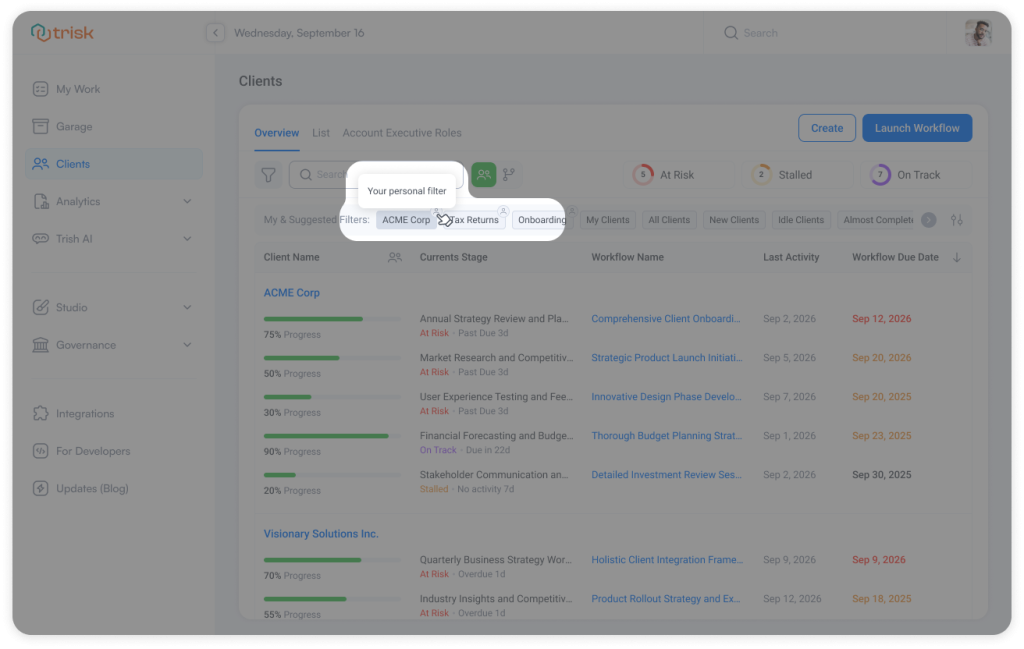
The Suggested Filters bar is now My & Suggested Filters, bringing your personal saved filters directly alongside Trisk’s suggestions.
Your filters appear first, giving you one-click access to the views you use most often—whether that’s Client Onboarding, Work Due This Week, or My High-Priority Clients. There’s no need to reopen the full Filters menu and rebuild or find the same view each time.
Personal filters are marked with a user icon, so you can easily distinguish your own saved views from the platform’s suggestions.
Business Impact
Get Back to Frequent Views Faster
Common combinations of filters become one-click shortcuts to the work you regularly need to see.
Make Your Workspace More Personal
Each user can keep the views that matter to their role and responsibilities immediately accessible.
Know Which Filters Are Yours
The personal indicator clearly separates views you created from suggestions provided by Trisk.
The result is a faster, more personal way to move between the views that matter to your work.
Explore even more cutting-edge features that will add significant value to your Trisk experience:
- Table Controls – Lock Data to Prevent Unwanted Changes
-
PDF Outline Navigation and Excel Support in Document Management
- Build a File Structure That Matches Your Practice – Create custom folders inside Garage to organize supporting documents, internal resources, and client materials around the way your team works.