
From personalized filters and customizable list views to more intuitive and controllable tables, you can now shape how information appears and behaves—so everything feels clearer, faster, and better aligned with how you work. This update makes your workspace more focused, flexible, and easier to work in.
Table of Contents
– Form Tables: Lock Data to Prevent Unwanted Changes
– Form Tables: Add Rows and Columns in One Click
– Form Tables: Flexible Layout Control for Cleaner Forms
– Suggested Filters: Personalize What You See
– List Views: Customize Columns for Faster, Focused Work
Form Tables: Lock Data to Prevent Unwanted Changes
Stay in control of your table data. Lock key values, rows, or entire tables to prevent unwanted changes—while everything else remains open for updates.
What’s New
You can now protect table data at multiple levels:
- Lock the entire table
- Lock specific cells
- Lock specific rows
- Lock specific columns
Locked areas cannot be edited, removed, or structurally changed.
How It Works
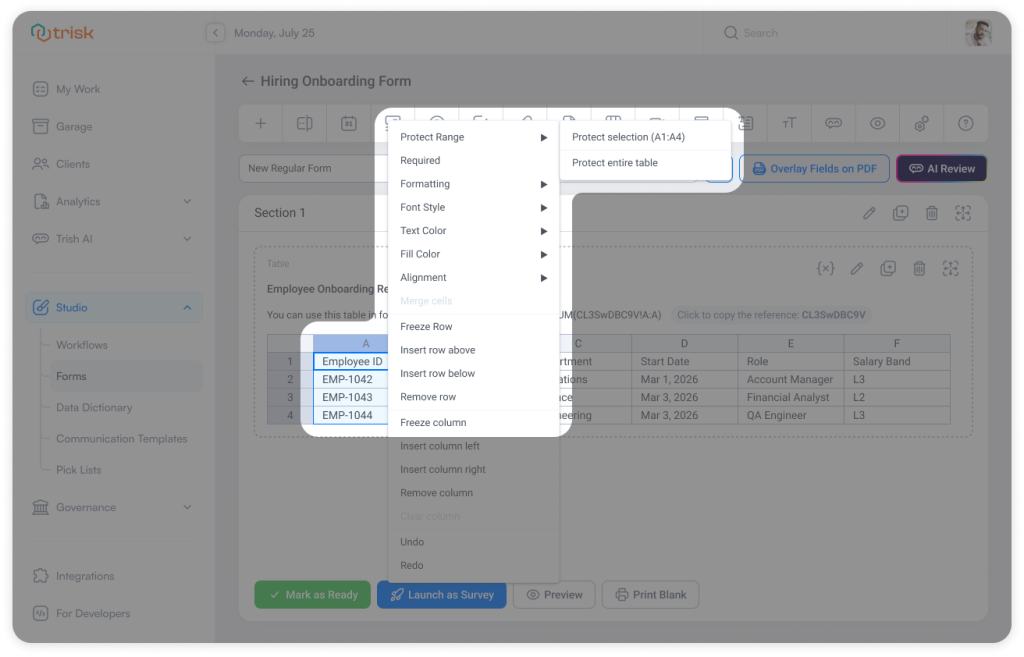
Right-click inside a table to access protection options:
– Protect selection (cell, row, or column)
– Protect the entire table
To unlock:
– Remove protection for a selected range
– Or remove protection for the entire table
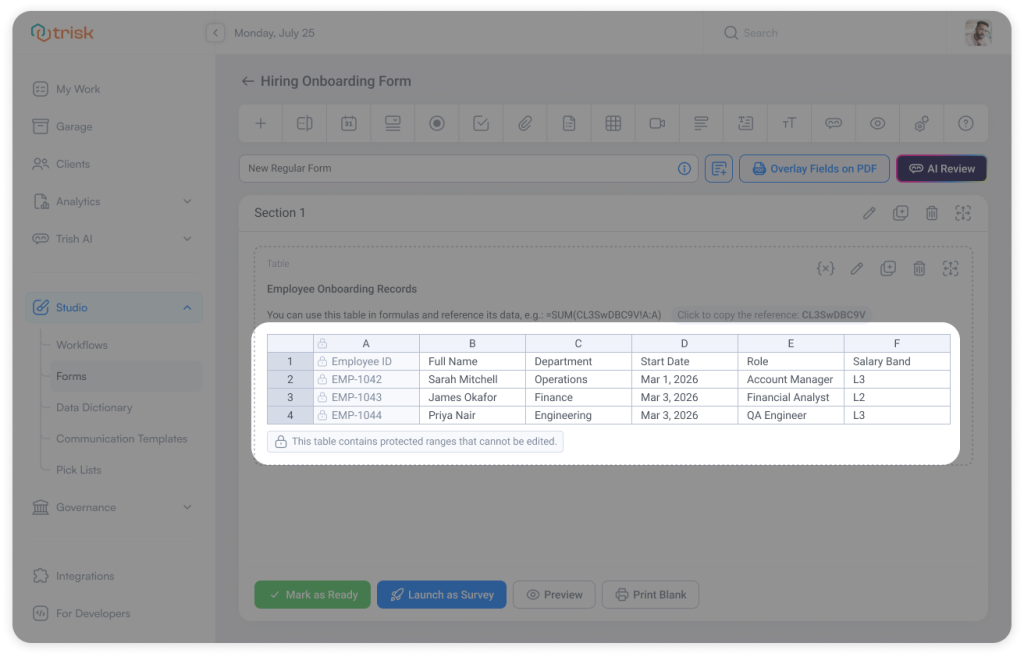
Locked elements are clearly indicated, so you can immediately understand what can and cannot be edited.
When protection is applied:
- A message appears below the table:
“This table contains protected ranges that cannot be edited.” - The message updates automatically as protection is added or removed
When interacting with locked content:
- Attempting to edit a protected cell shows a message:
“This cell is protected and cannot be edited.”
Business Impact
Protect Critical Data
Prevent accidental edits or deletions in finalized or sensitive sections.
Maintain Structure Consistency
Ensure key rows and columns remain unchanged across workflows.
Enable Controlled Flexibility
Lock what must stay fixed—leave the rest editable.
Form Tables: Add Rows and Columns in One Click
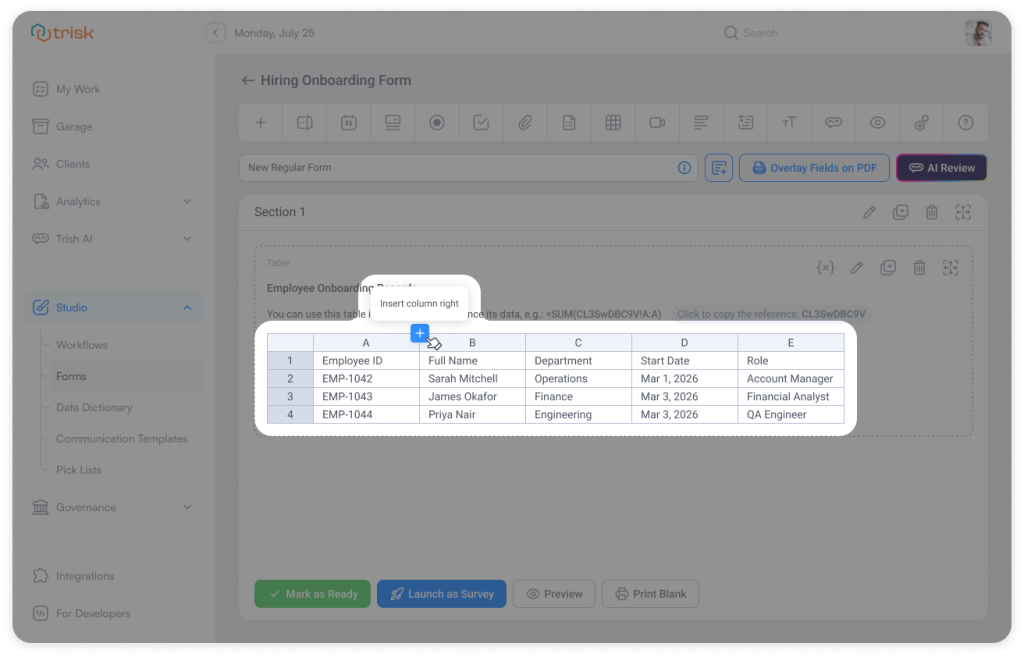
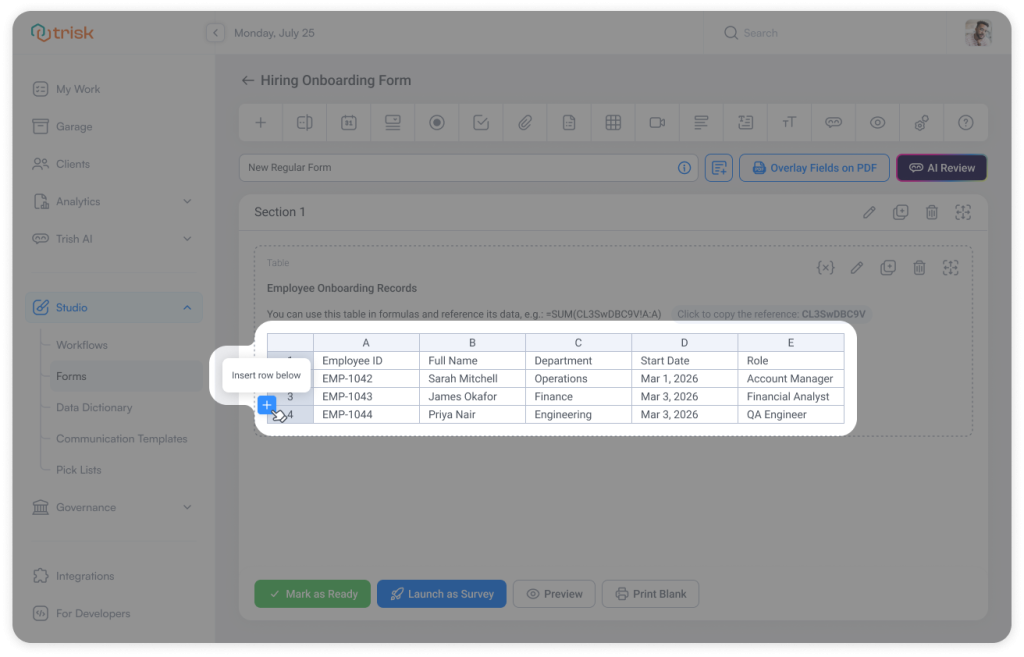
Add rows and columns with a single click. New, clear controls make table updates faster and more intuitive.
What’s New
You can now add rows and columns faster directly from the table interface.
Inside any table field:
- Click the + button between rows to add a new row
- Click the + button between columns to add a new column
The existing row/column adding with the right-click contextual menu remains fully available.
Business Impact
Faster Table Editing
Add rows and columns instantly—no need to search for hidden actions.
Improved Usability for New Users
Clear visual controls remove guesswork and reduce onboarding friction.
No Workflow Disruption
Existing right-click functionality stays intact for users.
Form Tables: Flexible Layout Control for Cleaner Forms
Forms should adapt to your use case—not force the structure.
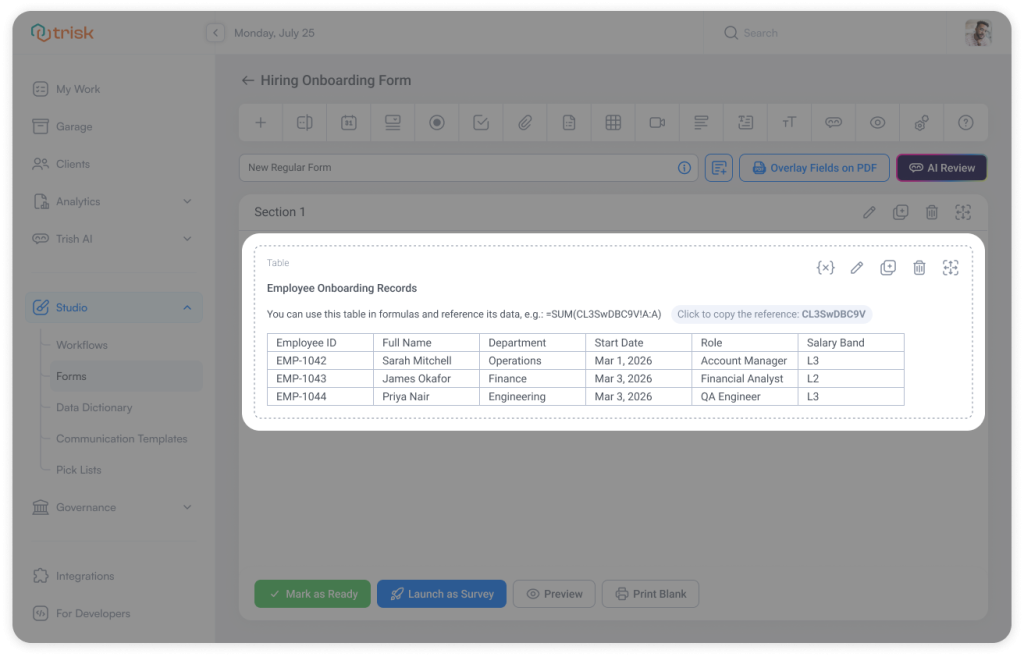
With flexible table layout controls, you can hide row numbers and column headers, and shape tables to fit your use case—whether that’s structured data or simple, clean input.
What’s New
You can now control table visibility elements independently:
- Hide row numbers
- Hide column headers
- Keep both when structure is needed
No impact on how data is entered, validated, or submitted.
 How It Works
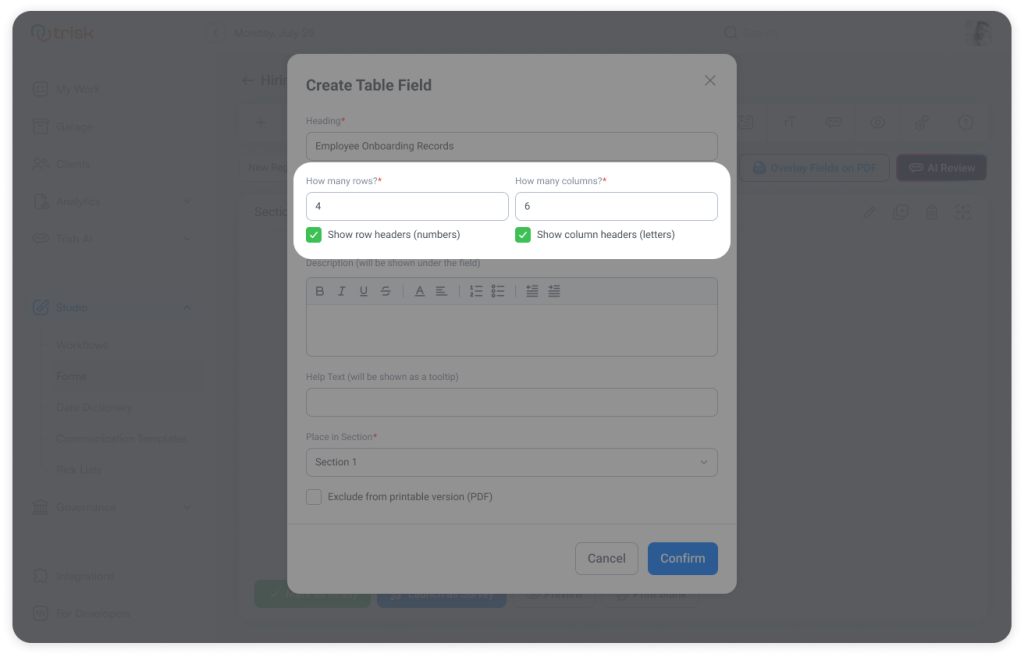
When creating or editing a table field:
- Toggle “Show row headers”
- Toggle “Show column headers”
The table updates instantly, and the layout adjusts automatically without affecting data entry or validation.
 Business Impact
Cleaner Form Design
Remove unnecessary elements to create simpler, more intuitive layouts.
Better User Experience
Reduce visual noise and make tables easier to understand.
More Flexible Use Cases
Use tables not just for structured data, but also for lightweight input and layout scenarios.
Curious to see perfect automation in Your Context?
👉 Book a short walkthrough
👉 See how Trisk solutions map into your busiest workflows
👉 Compare your current cycle times with what automation can unlock
No hype.
No generic pitch.
Just a clearer look at how 2026 could feel less chaotic and more strategic.
Suggested Filters: Personalize What You See
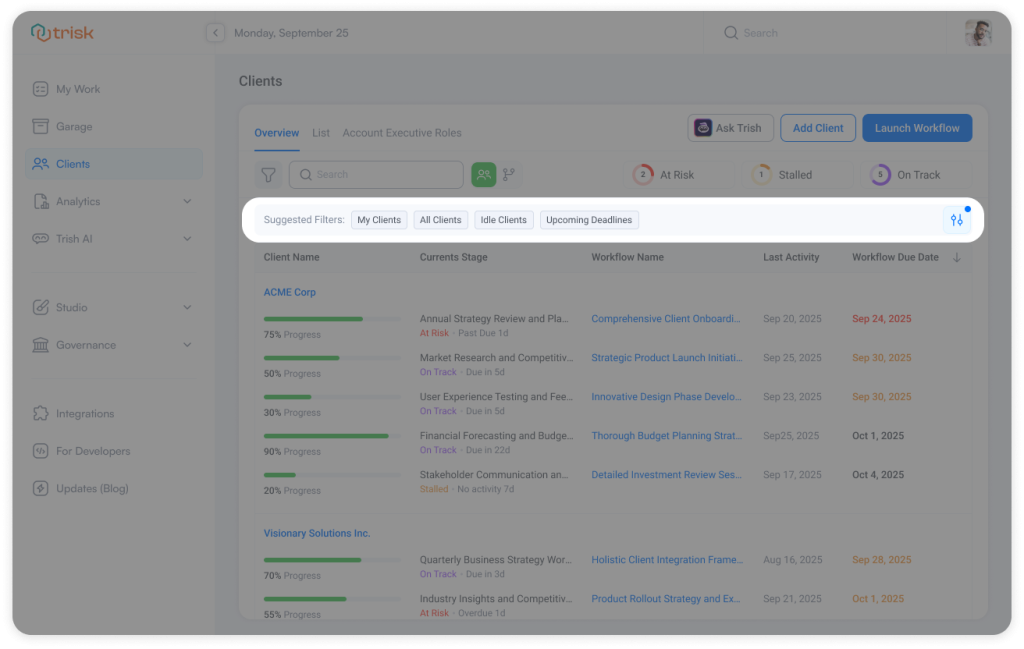
Customize exactly what you see and remove what you don’t need with improved Suggested Filters. Your workspace feels lighter, faster, and easier to navigate. By cutting down visual noise and unnecessary decisions, this update reduces cognitive load—helping you focus, decide, and move forward without friction.
 What’s New
You can now control which Suggested Filters are visible.
- Hide filters you don’t use
- Keep only the ones relevant to your workflow
Each user can personalize their own view without affecting others.
How It Works
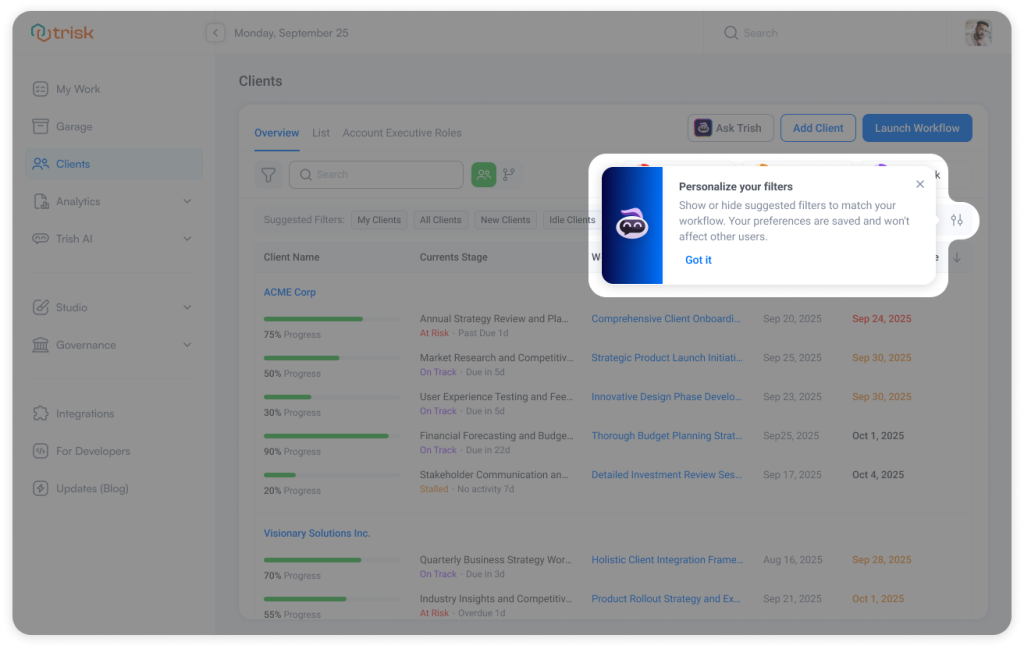
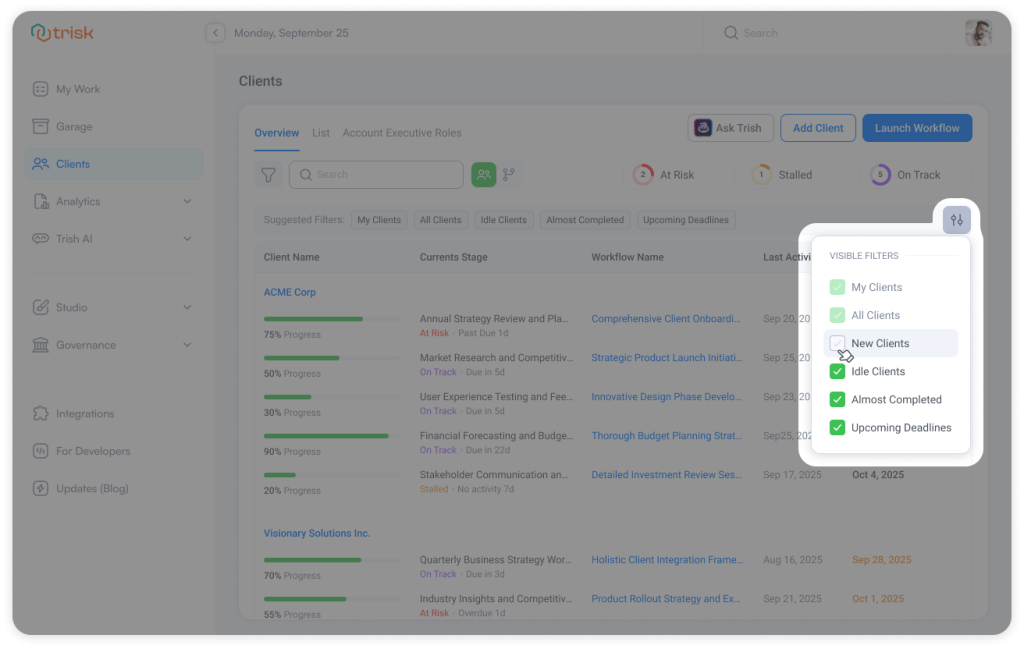
Click the “Personalize filters” icon next to Suggested Filters.
Select or unselect filters using checkboxes
Your preferences are saved automatically
Hidden filters can be restored anytime
Why It Matters
Filtering should help you move faster—not slow you down.
With fewer distractions:
- You find the right filter instantly
- You reduce unnecessary scanning
- Your workspace adapts to your role
A cleaner interface. Faster decisions. Less friction.
List Views: Customize Columns for Faster, Focused Work
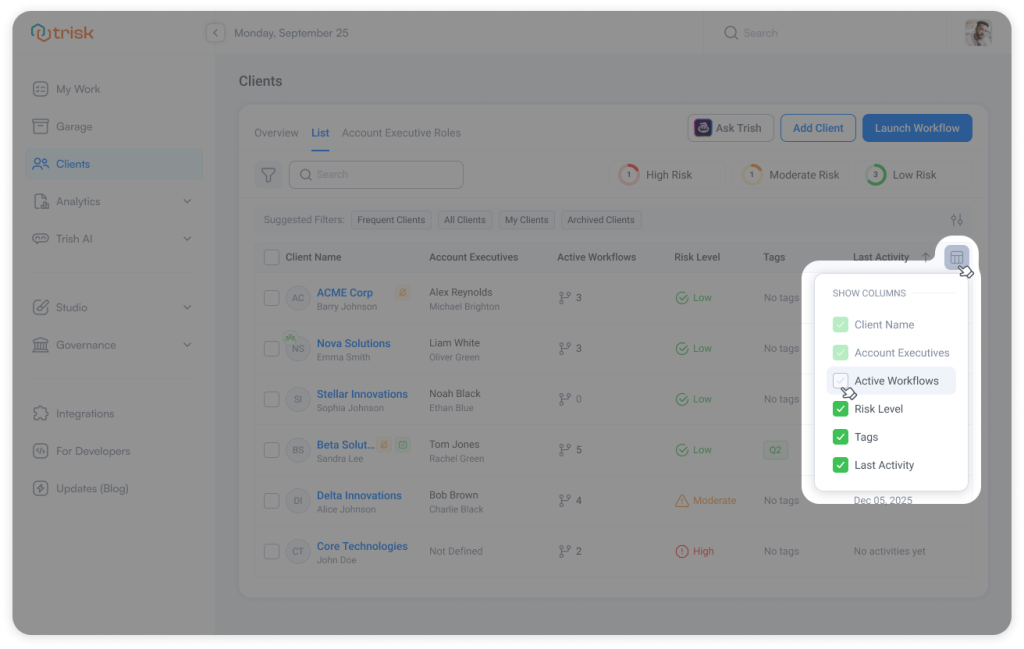
List views just got more flexible. Choose which columns to show and refine your workspace to match your priorities, making it easier to focus and move through your work with less effort.
What’s New
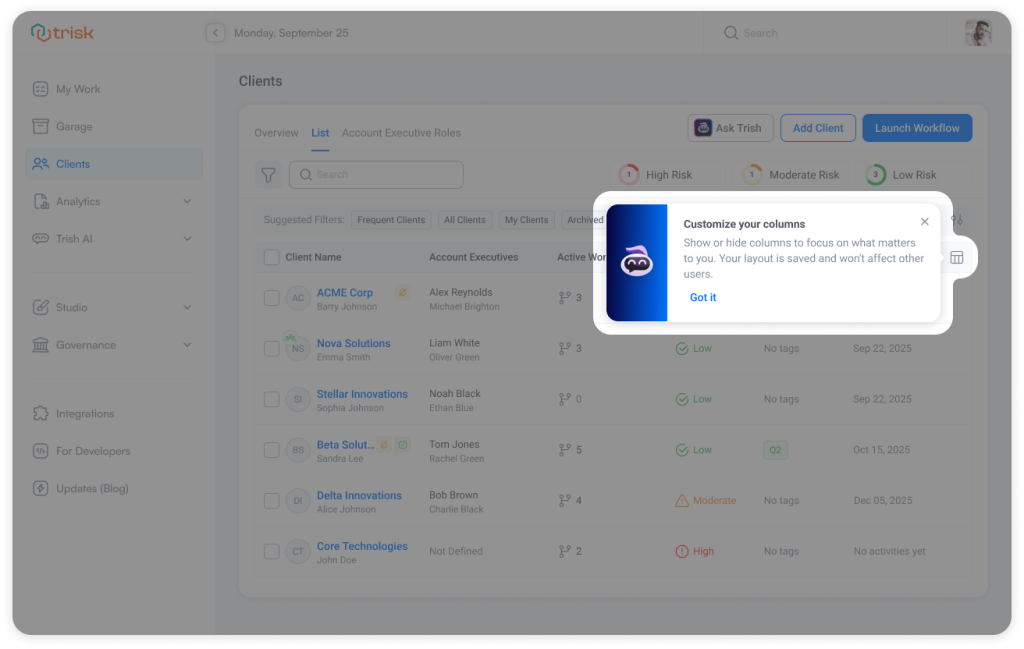
List views now support configurable columns, allowing each user to control what data is visible.
You can:
- Show only the columns relevant to your work
- Hide everything else
- Create a more focused view across all lists
How It Works
In any supported list view (Task List, Clients → List, Clients → Overview, Workflows List):
1. Click “Customize columns” in the table header
2. Select or deselect columns using checkboxes
3. The table updates instantly—no save action or reload required
Your preferences:
- Are saved automatically
- Persist across sessions, tabs, and devices
- Apply only to you (no impact on other users)
Business Impact
Work with Less Noise
Remove unnecessary columns and focus on what matters.
Scan Faster
Cleaner tables make it easier to find key information quickly.
Adapt to Your Role
Different users see different priorities—now the UI reflects that.
Explore even more cutting-edge features that will add significant value to your Trisk experience:
- Task Search Inside Workflow – Find any task or process instantly within a workflow.
- Unified Feedback System for Form Review – Comments, Notes, and Discussions are now combined into one structured Feedback system.
- User Groups – Save Hours on Multi-User Assignments and Processes